Google DeepMind recently released Gemma 4, a family of open-weight AI models that run on everything from smartphones to workstations. If you want to start getting started with Gemma 4 but feel overwhelmed by the options, this guide is for you. We will walk through choosing the right model, checking your hardware, installing the tools, and running your first prompts. By the end, you will have Gemma 4 running locally on your own machine.
For a full overview of what Gemma 4 is and why it matters, check out our launch coverage:
Gemma 4: Google Launches Its Most Capable Open AI Model Family
Step 1: Pick the Right Gemma 4 Model for Your Hardware
Before getting started with Gemma 4, you need to choose the right model size. Google released four variants. Each one targets different hardware. The table below shows which model fits your setup.
| Model | Download Size | Min. Memory | Best Hardware | Best For |
| E2B | ~3.5 GB (Q4) | ~5 GB RAM | 8 GB laptop, Pi 5 | Quick Q&A, testing |
| E4B | ~5 GB (Q4) | ~6 GB VRAM | 16 GB laptop, GPU | Daily local assistant |
| 26B MoE | ~18 GB (Q4) | ~20 GB VRAM | RTX 3090/4090 | Coding, reasoning |
| 31B Dense | ~20 GB (Q4) | ~24 GB VRAM | A100/H100 GPU | Fine-tuning base |
| Which model should you pick first?If you have a standard laptop with 8 to 16 GB of RAM, start with the E4B model. It delivers strong reasoning performance while staying lightweight. If you own an NVIDIA GPU with 24 GB of VRAM (like an RTX 4090), try the 26B MoE model for the best balance of speed and quality. |
Step 2: Install Ollama for Getting Started With Gemma 4
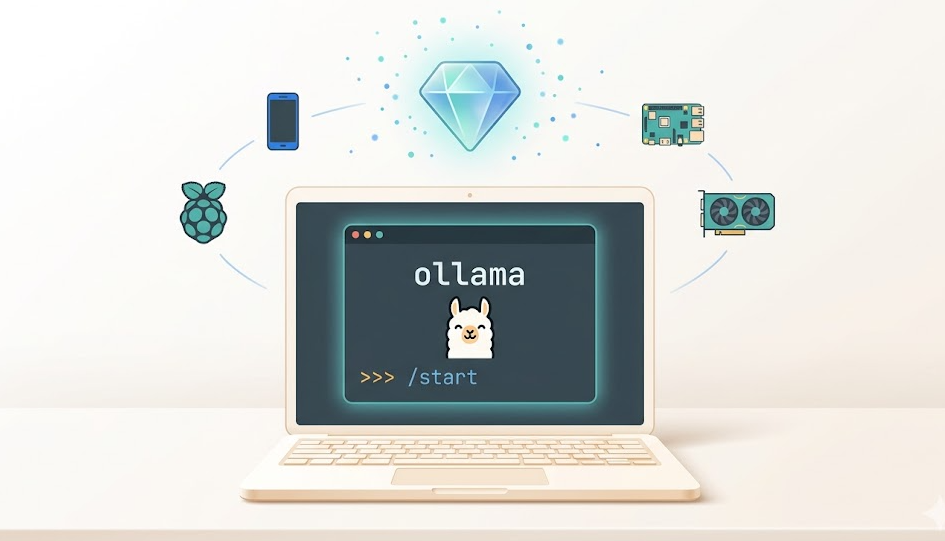
Ollama is the fastest way to get started with Gemma 4 locally. It handles downloading, quantization, and serving in one tool. Ollama works on macOS, Windows, and Linux. Follow the steps below to install it.
Install on macOS
Download Ollama from the official website at ollama.com. Open the installer and follow the on-screen instructions. Once installed, Ollama runs as a background service automatically.
Install on Windows
Visit ollama.com and download the Windows installer. Run the .exe file and follow the prompts. After installation, open a Command Prompt or PowerShell window to use the ollama command.
Install on Linux
Run the following command in your terminal to install Ollama:
| curl -fsSL https://ollama.com/install.sh | sh |
After installing, verify it works by running this command:
| ollama –version |
You should see a version number in the output. If so, Ollama is ready.
Step 3: Download and Run Your First Gemma 4 Model
Now that Ollama is installed, you can download Gemma 4 with a single command. This step pulls the model weights to your local machine. Therefore, you will not need an internet connection for inference after the initial download.
For the E4B model (recommended starting point):
| ollama run gemma4 |
This command downloads the default E4B model and opens an interactive chat session. You can also specify other variants:
| ollama run gemma4:e2b # Smallest, runs on 8 GB RAMollama run gemma4:e4b # Default, best for most usersollama run gemma4:26b # MoE model, needs 20+ GB VRAMollama run gemma4:31b # Dense model, needs 24+ GB VRAM |
After the download completes, you will see a prompt. Type any question to start chatting with the model. For example, try: “Explain how a neural network learns in simple terms.” The response will generate entirely on your local hardware.
Getting Started With Gemma 4 Without Installing Anything
If you want to test Gemma 4 before committing to a local setup, Google offers a free browser-based option. Visit Google AI Studio at aistudio.google.com and select a Gemma 4 model. No downloads, no GPU needed. This is the fastest way to explore the model’s capabilities before installing locally.
Additionally, the Google AI Edge Gallery app lets you run the E2B and E4B models on Android and iOS devices. This is ideal for testing on-device inference with images and audio inputs.
Step 4: Use Gemma 4 in Python Projects
Once Ollama is running, you can integrate Gemma 4 into your Python applications. First, install the Ollama Python library:
| pip install ollama |
Then use this simple code snippet to generate a response:
| import ollama response = ollama.chat( model=’gemma4′, messages=[ {‘role’: ‘user’, ‘content’: ‘Write a Python function to reverse a string’} ])print(response[‘message’][‘content’]) |
Ollama also exposes a local REST API on port 11434. Because of this, you can send requests from any language or tool that supports HTTP. For production workloads, consider using vLLM instead, which provides an OpenAI-compatible API with higher throughput.
How to Enable Thinking Mode in Gemma 4
Gemma 4 supports a built-in thinking mode that lets the model reason step by step before answering. This is especially useful for math, logic, and complex coding tasks. To enable it, include the special token at the start of your system prompt.
In the Ollama Python library, you can activate thinking mode like this:
| response = ollama.chat( model=’gemma4′, messages=[ {‘role’: ‘system’, ‘content’: ‘<|think|>You are a helpful assistant.’}, {‘role’: ‘user’, ‘content’: ‘What is 127 * 43?’} ]) |
The model will output its internal reasoning first, followed by the final answer. To disable thinking, simply remove the <|think|> token from the system prompt. For most casual conversations, disabling thinking mode gives faster responses.
Getting Started With Gemma 4 Multimodal Features
All Gemma 4 models process images and video natively. The E2B and E4B edge models also support audio input. You can send images to the model through Ollama using file paths. For example:
| ollama run gemma4 “Describe what you see in this image” –images photo.jpg |
For developers using the Python library, you can pass images as base64-encoded data. The vision encoder supports configurable token budgets from 70 to 1,120 tokens per image. Lower budgets process faster but capture less detail. Higher budgets are better for OCR and document parsing.
Furthermore, the edge models handle speech recognition on-device. Google compressed the audio encoder to just 305 million parameters. This means you can build voice-powered apps that run completely offline.
Tips and Best Practices for Gemma 4 Setup
| Performance TipsMemory headroom: Always leave 2 to 4 GB of free memory above the model size. The KV cache and system overhead need this space, especially with longer context windows.Quantization matters: Q4 (4-bit) reduces memory usage by about 60% compared to full precision. Start with Q4 for local testing. Switch to Q8 only if you have the VRAM and need maximum output quality.Context window costs VRAM: The 31B model at 4-bit uses about 20 GB for weights alone. Adding a 32K context window pushes that to roughly 27 GB. Plan your hardware accordingly.GPU vs. CPU: All models can run on CPU, but expect speeds of just 5 to 10 tokens per second. A GPU typically delivers 3 to 10 times faster performance. The E4B model is the best choice for CPU-only setups. |
Frequently Asked Questions About Getting Started With Gemma 4
Yes. All four Gemma 4 models are released under the Apache 2.0 license. This allows free commercial use, modification, and redistribution. You can download the models from Hugging Face, Kaggle, or Ollama. There are no usage caps, subscription fees, or API keys required for local inference.
Yes. Gemma 4 works on macOS with Apple Silicon through Ollama, llama.cpp, and MLX. The E4B model runs well on M1 and M2 Macs with 16 GB of unified memory. The 26B MoE model fits on M2 Pro, M3 Pro, or higher with 32 GB of unified memory.
Gemma 4 is Google’s open-weight model family. You download the weights and run them on your own hardware. Gemini is Google’s proprietary, cloud-based AI. Gemma 4 is built from the same research as Gemini 3 but is freely available under Apache 2.0. Therefore, Gemma gives you full control over data privacy and deployment.
No. Gemma 4 runs on NVIDIA GPUs, AMD GPUs (via ROCm), Apple Silicon (via Metal), and even CPU-only setups. However, an NVIDIA GPU with CUDA support provides the fastest inference. The E2B and E4B models work well on integrated graphics and older hardware.
For production serving, use vLLM with the OpenAI-compatible API endpoint. It supports NVIDIA, AMD, Intel GPUs, and Google TPUs. Ollama is best for local development and prototyping. For mobile apps, use Google’s LiteRT-LM library or the AI Edge Gallery app.
Start Building With Gemma 4 Today
Getting started with Gemma 4 takes less than five minutes with Ollama. Pick the model that matches your hardware, run the download command, and start prompting. The Apache 2.0 license means there are no restrictions holding you back.
If you missed our coverage of the full Gemma 4 launch, read the companion article here:
Gemma 4: Google Launches Its Most Capable Open AI Model Family