
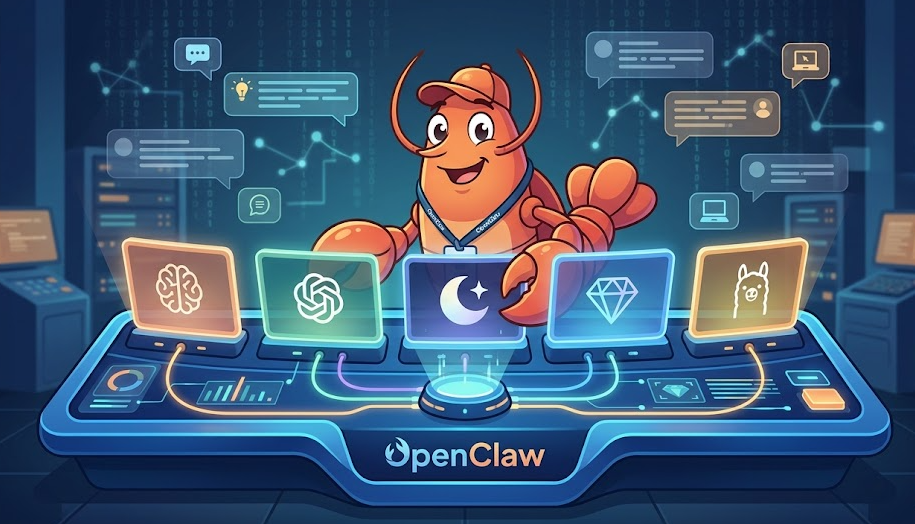
What if you could control multiple AI models from a single assistant running on your own computer? OpenClaw makes that possible. This open-source personal AI assistant connects to WhatsApp, Telegram, Discord, and Slack while letting you choose which language model powers every conversation. Following this OpenClaw setup guide, you will install the tool, connect five different AI providers, and have your assistant running in under 30 minutes.
OpenClaw is not another chatbot app. It is a self-hosted gateway that routes your messages to any AI model you choose. Because it runs locally, your data stays on your machine. You can switch between cloud models like Claude, GPT, Gemini, and Kimi K2, or go fully offline with Ollama. This flexibility is why thousands of developers adopted it within weeks of its launch in early 2026.
In this OpenClaw setup guide, you will learn the exact steps for installation, provider configuration, and API linking. You will also find a pricing comparison chart so you can pick the most cost-effective model for your needs.
What Is OpenClaw and Why Does It Matter?
OpenClaw is an open-source AI agent framework created by Peter Steinberger. It runs as a background service on macOS, Linux, or Windows (via WSL2). The gateway process handles channel connections, session management, tool execution, and model routing from a single Node.js daemon.
The tool supports over 20 messaging channels. These include WhatsApp, Telegram, Discord, Slack, Signal, iMessage, Google Chat, Microsoft Teams, and Matrix. You message your agent like a coworker, and it responds using whichever AI model you have configured.
OpenClaw stores conversations, memory, and skills as plain Markdown and YAML files in your workspace. Because everything lives on your machine, you maintain full control over your data. This self-hosted approach also means zero vendor lock-in. You can swap models at any time without rewriting your agent configuration.
Prerequisites for Your OpenClaw Setup
Before starting this OpenClaw setup guide, make sure you have the following ready:
- Node.js 22 or newer (Node 24 recommended for best performance)
- A terminal application (Terminal on macOS, PowerShell or WSL2 on Windows)
- At least one AI provider API key (Anthropic, OpenAI, Google, Moonshot, or a local Ollama install)
- A messaging app account for connecting a channel (WhatsApp, Telegram, or Discord)
| Pro Tip If you do not have Node.js installed, the OpenClaw installer script handles it for you automatically. |
How to Install OpenClaw Step by Step
The fastest way to install OpenClaw is with the one-liner installer script. Open your terminal and run:
curl -fsSL https://openclaw.ai/install.sh | bash
This command downloads the installer, sets up Node.js if needed, and prepares the OpenClaw CLI. After installation completes, run the onboarding wizard:
openclaw onboard –install-daemon
The onboard command walks you through three critical steps. First, it asks for your AI provider API key. Second, it lets you pick a messaging channel. Third, it installs the gateway daemon so OpenClaw runs in the background even when you close the terminal.
To verify your installation, run these diagnostic commands:
openclaw –versionopenclaw doctoropenclaw status
The doctor command checks for configuration issues. The status command confirms whether the gateway is running. If everything shows green, your base installation is complete.
OpenClaw Setup Guide for Ollama (Local Models)
Ollama lets you run AI models entirely on your hardware. There are no API costs, and your data never leaves your machine. This makes it the most private option in this OpenClaw setup guide.
Installing Ollama
Install Ollama from the official website or use the terminal:
curl -fsSL https://ollama.ai/install.sh | shollama pull llama3.3
After pulling a model, set the environment variable so OpenClaw can detect Ollama:
export OLLAMA_API_KEY=”ollama-local”
Configuring OpenClaw for Ollama
OpenClaw auto-discovers local Ollama models when you set the API key. To set a specific model as your default, edit your configuration:
{ “agents”: { “defaults”: { “model”: { “primary”: “ollama/llama3.3” } } }}
| Important Do not add /v1 to the Ollama URL. The /v1 path uses OpenAI-compatible mode, which breaks tool calling. Use the base URL http://127.0.0.1:11434 without a path suffix. |
Ollama requires significant RAM. A 7B parameter model needs about 8 GB of RAM. A 13B model requires 16 GB, and a 70B model needs 48 GB or more. GPU acceleration through NVIDIA CUDA or Apple Silicon dramatically improves response speed.
OpenClaw Setup Guide for Anthropic Claude
Anthropic Claude is the most popular provider for OpenClaw agents. Claude handles long system prompts reliably and excels at complex reasoning tasks.
To get your API key, visit console.anthropic.com. Navigate to Settings, then API Keys, and create a new key. Set it as an environment variable:
export ANTHROPIC_API_KEY=”sk-ant-your-key-here”
OpenClaw automatically detects the Anthropic key and configures Claude models. To set Claude as your primary model:
{ “agents”: { “defaults”: { “model”: { “primary”: “anthropic/claude-sonnet-4-6” } } }}
Claude Sonnet 4.6 offers the best balance of capability and cost for most OpenClaw tasks. For complex reasoning, you can upgrade to Claude Opus 4.6. For fast, lightweight tasks, Claude Haiku 4.5 is the budget-friendly option.
Connecting OpenClaw to ChatGPT (OpenAI)
OpenAI models work well for creative writing, function calling, and general-purpose tasks. Get your API key from platform.openai.com under API Keys.
export OPENAI_API_KEY=”sk-your-openai-key”
Configure your preferred GPT model in the OpenClaw config:
{ “agents”: { “defaults”: { “model”: { “primary”: “openai/gpt-5.2” } } }}
GPT-5.2 delivers strong reasoning at $1.75 per million input tokens. For budget-conscious setups, GPT-5-mini at $0.25 per million input tokens handles simpler tasks effectively.
Linking Kimi K2 to Your OpenClaw Setup
Kimi K2 from Moonshot AI is one of the most cost-effective frontier models available. It uses a Mixture-of-Experts architecture with 1 trillion total parameters but activates only 32 billion per request. This design keeps costs low while maintaining strong performance.
Get your API key from platform.moonshot.ai. Then set the environment variable:
export MOONSHOT_API_KEY=”your-moonshot-key”
Configure Kimi K2 as your provider:
{ “agents”: { “defaults”: { “model”: { “primary”: “moonshot/kimi-k2-0905-preview” } } }}
At $0.60 per million input tokens and $2.50 per million output tokens, Kimi K2 is roughly 5 to 6 times cheaper than Claude Sonnet. It excels at coding, agentic tasks, and multilingual work.
Google Gemini API Configuration in OpenClaw
Google Gemini offers a generous free tier and strong multimodal capabilities. It is a solid choice for research tasks and document analysis thanks to its large context windows.
Visit ai.google.dev to get your API key from Google AI Studio. Set it in your environment:
export GOOGLE_API_KEY=”AIza-your-google-key”
Add Gemini as your default model:
{ “agents”: { “defaults”: { “model”: { “primary”: “google/gemini-2.5-pro” } } }}
Gemini 2.5 Pro costs $1.25 per million input tokens for contexts under 200K tokens. Gemini 3 Flash at $0.50 per million input tokens is a budget-friendly alternative for simpler tasks. The free tier allows up to 1,000 requests per day, which is excellent for testing.
API Pricing Comparison Chart for OpenClaw Providers
Choosing the right model depends on your budget and use case. The table below compares pricing across all providers covered in this OpenClaw setup guide. All prices are per million tokens in USD as of March 2026.
| Provider / Model | Input Cost | Output Cost | Context Window | Best For |
| Ollama (Local) | $0.00 | $0.00 | Model dependent | Privacy, offline, zero cost |
| Claude Haiku 4.5 | $1.00 | $5.00 | 200K | Fast, lightweight tasks |
| Claude Sonnet 4.6 | $3.00 | $15.00 | 1M | Balanced quality and cost |
| Claude Opus 4.6 | $5.00 | $25.00 | 1M | Complex reasoning |
| GPT-5.2 | $1.75 | $14.00 | 128K | Creative writing, coding |
| GPT-5-mini | $0.25 | $2.00 | 128K | Budget general tasks |
| Kimi K2 | $0.60 | $2.50 | 131K | Coding, agents, budget |
| Kimi K2.5 | $0.60 | $2.50 | 256K | Multimodal, agent swarm |
| Gemini 2.5 Pro | $1.25 | $10.00 | 1M | Research, long documents |
| Gemini 3 Flash | $0.50 | $3.00 | 1M | Speed, balanced quality |
| Gemini 2.5 Flash-Lite | $0.10 | $0.40 | 1M | High volume, low cost |
| Cost Saving Tip Most providers offer batch processing at a 50% discount for non-urgent tasks. Anthropic and Google also support prompt caching, which can reduce repeated input costs by up to 90%. |
How to Use Multiple Providers with OpenClaw
OpenClaw supports fallback models. If your primary provider hits rate limits or goes down, the gateway automatically switches to the next model in your list. Configure fallbacks like this:
{ “agents”: { “defaults”: { “model”: { “primary”: “anthropic/claude-sonnet-4-6”, “fallbacks”: [ “google/gemini-2.5-pro”, “moonshot/kimi-k2-0905-preview” ] } } }}
You can also use OpenRouter as a single routing layer. OpenRouter gives you access to dozens of models through one API key. Configure it by setting your OpenRouter key and referencing models with the openrouter/ prefix.
To switch models on the fly without editing config files, use the CLI:
openclaw models set anthropic/claude-sonnet-4-6openclaw models list
Troubleshooting Your OpenClaw Setup
If your agent does not respond, start by checking the gateway logs:
openclaw daemon logs
Common issues and their fixes include:
- Invalid config JSON (missing comma or extra bracket) causes the gateway to fail silently. Run openclaw doctor –fix to auto-detect syntax errors.
- Port 18789 conflict happens when another service uses the default gateway port. Change the port in your config or stop the conflicting process.
- API key revoked or expired produces authentication errors in the logs. Regenerate a new key from your provider’s console.
- Ollama tool calling breaks when using the /v1 URL path. Always use the native Ollama API URL without /v1.
Frequently Asked Questions About OpenClaw Setup
Yes. OpenClaw itself is completely free and open-source. You only pay for the AI provider API calls. If you use Ollama with local models, there are zero ongoing costs beyond your electricity bill.
Claude Sonnet 4.6 is the most popular choice for OpenClaw agents. It handles complex instructions reliably and costs $3 per million input tokens. For budget setups, Kimi K2 at $0.60 per million input tokens delivers strong coding and agent performance at a fraction of the price.
Yes. Configure Ollama as your provider and pull a local model before going offline. OpenClaw routes all requests to the local Ollama instance. No data leaves your machine, and responses work without internet access.
Monthly costs depend on your model choice and usage volume. Light personal use with Kimi K2 or Gemini Flash typically runs $5 to $30 per month. Medium usage with Claude Sonnet averages $30 to $100 per month. Using Ollama locally costs nothing beyond hardware and electricity.
OpenClaw runs on Windows through WSL2 (Windows Subsystem for Linux). Install WSL2 first, then follow the standard Linux installation steps inside your WSL2 terminal. Docker Desktop is recommended for sandboxed execution.
Start Building Your Personal AI Assistant Today
This OpenClaw setup guide covered everything you need to get started. You now know how to install the tool, connect five different AI providers, and choose the right model based on your budget. OpenClaw gives you the flexibility to run AI locally with Ollama, tap into frontier cloud models from Anthropic, OpenAI, Google, and Moonshot, or combine multiple providers with automatic fallback.
The next step is simple: pick one provider, run the installer, and send your first message. As your needs grow, you can add more providers, install skills from ClawHub, and connect additional messaging channels. For detailed documentation, visit docs.openclaw.ai.
Noe that you have finished the setup guide. Follow our Skills guide for OpenClaw

One thought on “OpenClaw Setup Guide: Connect Ollama, Anthropic, ChatGPT, Kimi K2, and Gemini APIs”